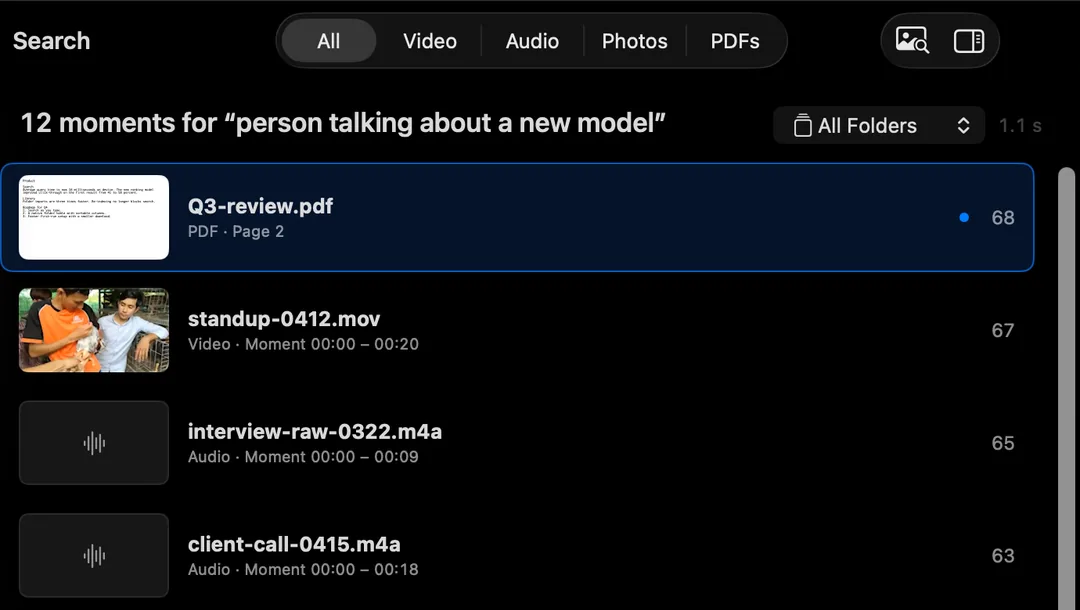
To find a moment in a video on a Mac, add the folder of videos to HyperArc and type what happens in the shot: “drone shot over a coastline”, “someone writing on a whiteboard”, “kids blowing out birthday candles”. HyperArc lists the matching moments with their time ranges, and opens the video right at that point.
Why Scrubbing and Spotlight Don't Scale
Spotlight finds videos by file name, date and metadata. It doesn't look at the frames or listen to the sound, so it can tell you a file is 14 minutes long but not that the sunset is at minute 11. The usual workaround is scrubbing: open file after file and drag the playhead. That's fine for one video and miserable for a hard drive of them.
HyperArc indexes the inside of each video. Every file is split into 30-second moments, and HyperArc's search model, running on your Mac, computes an embedding for each one. When you search, your description is compared against every moment in every video you've added, and the best matches come back first with the file name and time range.
How to Find the Moment
- Install HyperArc (macOS 15 or later). Setup downloads the search model once, about 485 MB. There's no account to create and no API key.
- Add the folders with your videos. Use Add Folder in the sidebar. Add as many as you like; they stay where they are.
- Let it index. HyperArc works in the background. Each folder shows its status, and the folder table lists every file with its length and how many parts it was split into.
- Describe the shot. Be concrete about what's on screen: “close-up of hands kneading dough”, “crowd cheering at night”, “presenter pointing at a slide”.
- Switch the filter to Video if photos, recordings or PDFs are getting in the way, or limit the search to one folder.
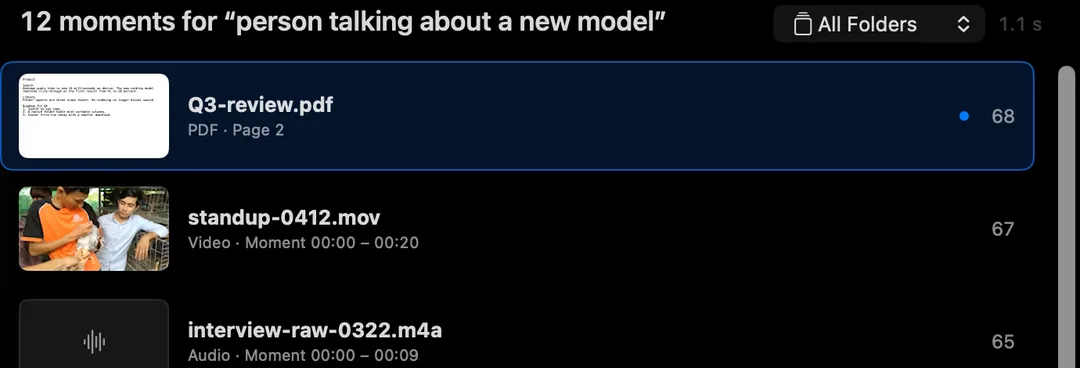
- Open at the moment. Select a result to preview it in the inspector, then Open at [time] to start the video there. Copy Timestamp puts the time on your clipboard for notes or an edit decision list; Show in Finder takes you to the file.
Search Tips for Video
- Name the setting and the action. “Kitchen, someone chopping onions” beats “cooking”.
- Add one detail you're sure of, like the light, a colour or the weather. A wrong detail pulls results away, so leave out guesses.
- Search with a frame. Paste a screenshot or a still from the shoot and HyperArc finds moments that look like it. See search with an image.
- Use Find Similar on a good result to pull up the other takes and angles of the same scene.
- Type in any language. Text search works across languages.
What to Expect
- Moments, Not Just FilesResults are 30-second moments with time ranges, so you start close to what you're after.
- Folders, Not a LibraryPoint it at the folders you already have. New clips in watched folders are indexed automatically.
- Stays on Your MacVideo, the index and your searches never leave the Mac. Offline after setup.
- No Faces or TranscriptsIt doesn't recognize people by face or produce transcripts. Describe the scene instead.
A result lands you at the start of a 30-second moment, not on a single frame, so expect a few seconds of scrubbing. Indexing a large folder takes a while the first time; after that, only new files need work. If your footage already lives in Final Cut Pro or Premiere Pro, their built-in search may be enough: the comparison of video search apps covers when each makes sense, and the step-by-step guide walks through the free options too.
HyperArc is $129 once, for up to 3 Macs, with a 7-day money-back guarantee.
Updated