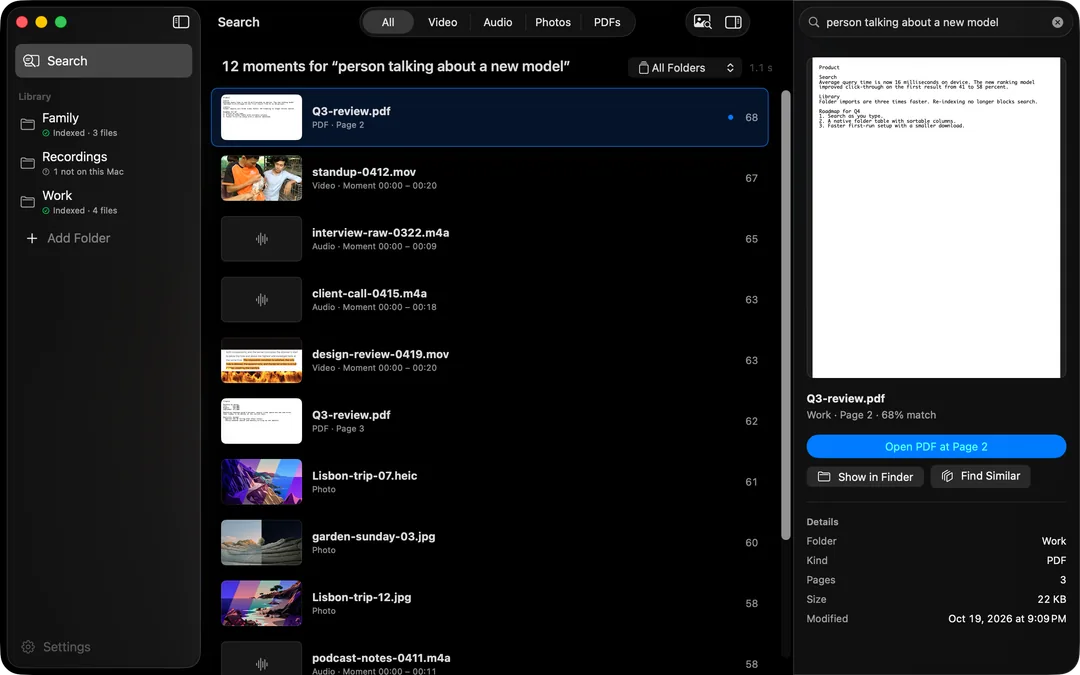
To search inside PDFs by meaning on a Mac, add the folder that holds them to HyperArc and describe what the page says: “the slide with next year's hiring plan”, “where the contract talks about cancelling early”, “results table comparing the two treatments”. HyperArc returns the matching pages, not just the files, and opens the PDF at that page.
Exact Words Versus Meaning
The search built into macOS is a word search. Spotlight indexes the text inside PDFs, and Preview's Find jumps between occurrences of a word in an open document. That's perfect when you know the phrase. It falls apart when you remember the idea but not the wording, or when you have a folder of 200 PDFs and no idea which one it's in.
HyperArc indexes every PDF page separately. HyperArc's search model, running on your Mac, turns each page into an embedding that captures what the page is about. Your search is embedded the same way and compared against every page in your library. So “ways to reduce churn” can surface a page titled “Customer retention initiatives”, and a question typed in Spanish can find an English report.
How to Find the Page
- Install HyperArc (macOS 15 or later). During setup it downloads its search model once, about 485 MB. No account, no API key.
- Add your folders. Point HyperArc at the folders where your PDFs already live. Nothing is moved or copied into a library, and watched folders pick up new files as they arrive.
- Let it index. HyperArc reads each PDF page by page in the background. The folder table shows how many pages each document has and whether it's indexed.
- Describe the page. Write a short description of what's on it: “quarterly revenue by region”, “steps to reset the device”, “the paragraph about data retention”.
- Filter to PDFs. Switch the type filter to PDFs, or choose one folder, when your library also holds video, audio and photos.
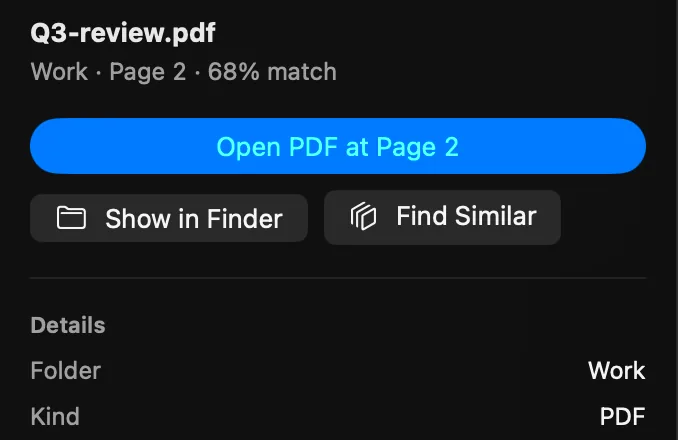
- Open it at the page. Select a result. The inspector shows a preview of that page; Open PDF at Page N opens the document right there.
Tips for Better PDF Results
- Describe the content, not the file. “Pricing table with three tiers” works better than “the pricing doc”.
- Use the vocabulary of the document when you know it. A legal PDF is more likely to say “termination” than “quitting”.
- One topic per search. Asking for two things at once tends to return pages that half-match both.
- Use Find Similar on a good result to see other pages, in the same file or elsewhere, that cover the same ground.
- Search with a page. Drop a PDF into the search to find pages and other media that look like it, for example other versions of the same slide.
Where It Fits, and Where It Doesn't
- Page-Level ResultsEvery result is a page with its number, so you're not left scrolling through a 90-page report.
- Mixed LibrariesThe same search also covers videos, recordings and photos in the folders you add.
- Private by DesignDocuments, the index and your queries stay on your Mac. Search works offline after setup.
- Not a Document ManagerNo annotations, tags or smart folders. For heavy document work, a tool like DEVONthink goes deeper.
HyperArc is not a PDF editor or reader. It finds the page and hands you over to Preview (or your default PDF app). It doesn't quote or highlight the matching sentence, and it doesn't write summaries. If you need a full research workspace with notes and annotations, see HyperArc vs DEVONthink for an honest comparison.
For researchers with interviews and field recordings next to their papers, the researchers page shows how one search covers all of it.
HyperArc costs $129 once, for up to 3 Macs, with a 7-day money-back guarantee.
Updated