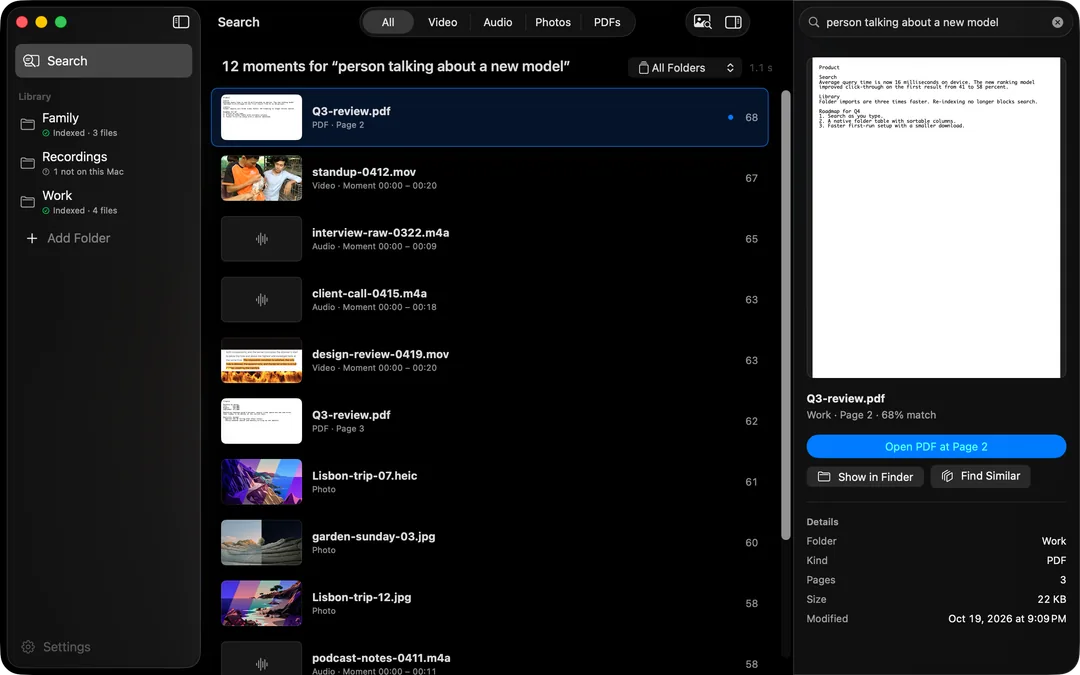
To reverse image search your own files on a Mac, drop or paste a photo, a video clip or a PDF into HyperArc's search. It finds the photos, video moments and PDF pages in your folders that look like it. You can also start from any result with Find Similar. Everything runs on your Mac, so the image you search with is never uploaded.
When an Image Beats a Description
Text search is great when you can put the thing into words. Sometimes you can't, or it would take a paragraph: a particular colour grade, the layout of a slide, the look of a location. Showing HyperArc an example is faster.
Some common cases:
- You have one shot and want the rest of the shoot. A still from a timeline, a frame grab, a photo a client sent back.
- You want other versions of a slide or page. Drop in the PDF of this year's deck to find the matching pages from last year's.
- You found a photo on your phone and want the originals. Paste it in to find the full-resolution files in your archive folders.
- You're hunting b-roll that matches. Search with one clip to find moments elsewhere in your footage with a similar look.
How It Works
HyperArc already turns every chunk of your library into an embedding with an on-device model: each 30-second video moment, each audio segment, each PDF page, each photo. When you search with an image, the image you give it is embedded the same way, and HyperArc returns the chunks whose embeddings sit closest to it. No reference image is sent anywhere, and nothing about it is saved to a server.
How to Search With an Image
- Set up HyperArc (macOS 15 or later). Setup downloads the search model once, about 485 MB. No account, no API key.
- Add your folders and let them index. Image search looks through whatever you've added.
- Drop or paste. Drag a photo, clip or PDF onto the search area, or copy one and press Command-V.
- Filter the results. Use the type filter (All, Video, Audio, Photos, PDFs) to see, say, only video moments that match your still, or limit to one folder.
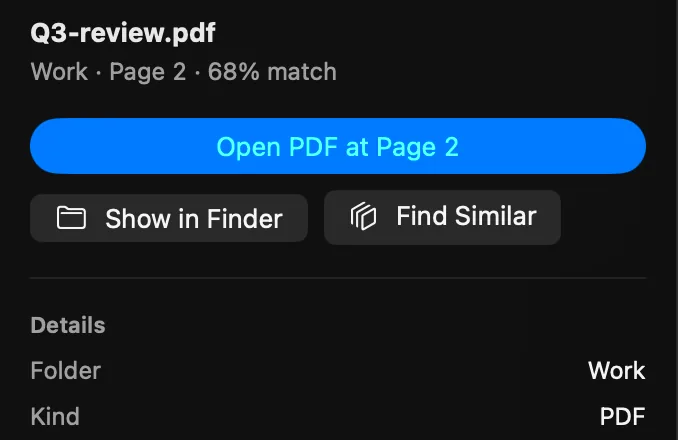
- Open the match. The inspector previews the result. Open the video at the matching time or the PDF at the matching page, or Show in Finder.
Find Similar: Start From a Result
Every result has a Find Similar button in the inspector. It's the quickest way to go from “that's close” to “that's it”: search with words, find something nearly right, then ask for more like it. Find Similar uses the result itself as the query, and it searches across types too: a photo can lead to a video moment shot in the same place. Use the type filter if you only want one kind of file back.
Honest Limits
- Looks Alike, Not IdenticalResults are ranked by visual similarity. Expect related scenes, not a strict duplicate check.
- No FacesHyperArc doesn't recognize people. It matches the scene, the setting and the composition.
- Only Your FoldersIt searches what you've added to HyperArc, never the web, and never uploads the image.
- Video Lands on a MomentA video match is a 30-second moment. Open at [time] starts there; scrub to the exact frame.
If you'd rather describe what you're after, see searching photos by description or finding a moment in a video. Both work in the same window, and you can switch between words and images as you narrow things down.
HyperArc is a one-time $129 for up to 3 Macs, with a 7-day money-back guarantee.
Updated