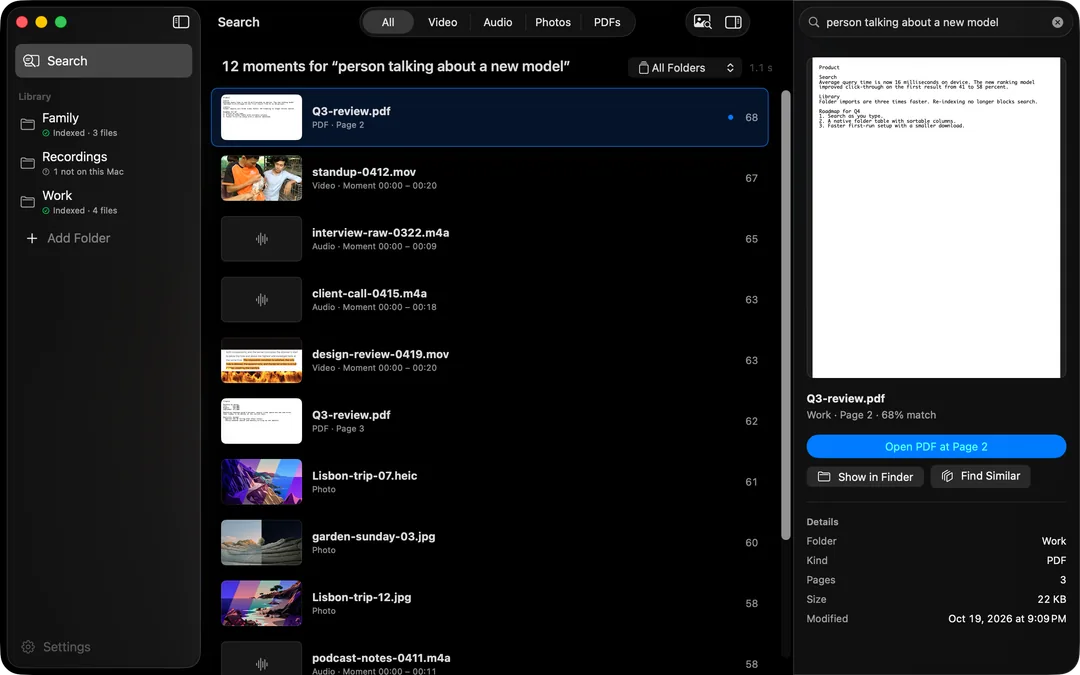
HyperArc lets you search a family library of photos and home videos by typing what you remember: “first steps in the kitchen”, “grandpa carving the turkey”, “the beach with the red umbrella”. It finds the photo, or the moment inside the video, and opens it right there. The search runs on your Mac, so your family's pictures are never uploaded.
Why Family Libraries Get Lost
Most family archives are a pile of folders: DCIM dumps from old cameras, phone exports, a drive of digitized tapes, folders a sibling shared after a holiday. File names are numbers. Dates are often wrong after a transfer. And the moment you want, the first time the baby laughed, is somewhere in the middle of a twelve-minute video nobody has watched since.
Spotlight can't see inside any of it. It knows MVI_0042.MOV is a video, not that it's the birthday with the chocolate cake. HyperArc looks at the content itself.
How It Works
Every photo, and every 30-second moment of every video, gets an embedding from an on-device model. The index lives on your Mac. When you type a description, HyperArc compares it against all of them and shows the closest matches. A video result tells you which file and which part, and Open at [time] starts it right there.
How to Search Your Family Library
- Install HyperArc (macOS 15 or later). Setup downloads the search model once, about 485 MB. No account to create.
- Gather the folders. You don't need to reorganize anything. Add the folders where the photos and videos already are: a Family folder, last year's phone export, the digitized tapes.
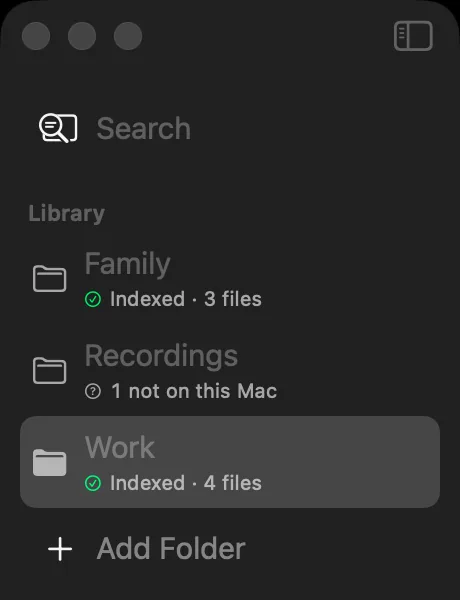
- Let it index. It runs in the background, and each folder shows its status in the sidebar. A big archive takes a while the first time.
- Describe the memory. What would you see? “Kids building a sandcastle”, “snowman in the garden”, “dog chasing a ball at the park”.
- Filter to Photos or Video if you know which you're after.
- Open it. Photos open in the inspector; videos open at the moment. Show in Finder gets you to the original file to share it.
Tips for Family Searches
- Describe the scene, not the person. HyperArc doesn't recognize faces, but it does understand “toddler on a red tricycle”.
- Add the setting: kitchen, beach, snow, birthday cake, Christmas tree.
- Start from a photo you have. Paste a picture from the family chat and HyperArc finds similar photos and video moments, often the originals from the same day.
- Use Find Similar on a good result to see the rest of that afternoon.
- Search in your own language. Text search works across languages, so grandparents can search the way they talk.
What to Expect
- Photos and Videos TogetherOne search covers both, plus any voice recordings and scanned PDFs in the same folders.
- Straight to the MomentVideo results open at the right 30 seconds instead of the start of a long clip.
- Stays in the FamilyNothing is uploaded. Your files, the index and your searches stay on your Mac.
- No Faces, No Auto-AlbumsIt doesn't recognize people or build albums. It finds things when you search.
HyperArc doesn't change your files: no renaming, no tags, no moving things into a library. If everything already lives in the Apple Photos app, its built-in search is a good place to start. HyperArc is for the rest, the folders, drives and exports that Photos never saw. More on photo search in search photos by description, and on video in find a moment in a video.
HyperArc costs $129 once and works on up to 3 Macs, so it can cover the family Mac and a laptop or two. 7-day money-back guarantee.
Updated