
To search photos by description on a Mac, add the folders that hold them to HyperArc and type what's in the picture: “a red kayak on a lake”, “whiteboard covered in sticky notes”, “dog asleep on the sofa”. HyperArc shows the matching photos, along with any videos, recordings and PDF pages that match too, and the search runs on your Mac.
Why Finder and Spotlight Can't Do This
Spotlight finds files by name, date and metadata. A photo called IMG_4821.HEIC tells it nothing about the beach, the dog or the birthday cake in the frame, so unless you renamed or tagged every picture, typing “beach” finds nothing. Tagging works for a few dozen photos. For a few thousand it stops being realistic, and you only find what you remembered to label.
HyperArc takes the other route: it looks at the image itself. Each photo is turned into an embedding (a numerical description of what's in it) by an on-device model. Your search text is turned into an embedding the same way, and the closest matches come back first. That's why a description works even when no word in your query appears anywhere in the file name.
How to Search Your Photos by Description
- Install HyperArc (macOS 15 or later) and let it download its search model during setup. It's about 485 MB, downloaded once. No account and no API key.
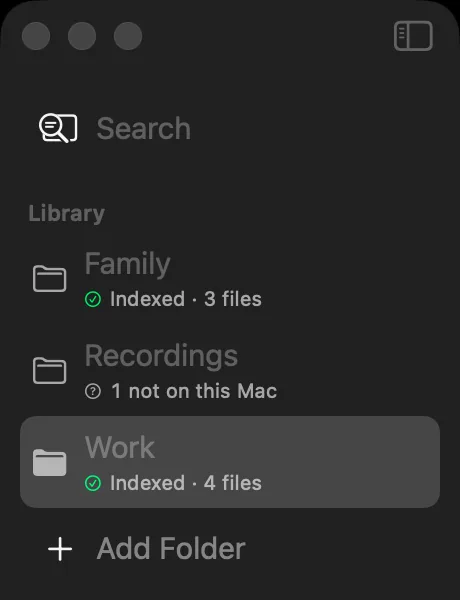
- Add your photo folders. Click Add Folder in the sidebar and pick the folders you want searchable. You can add as many as you like, and watched folders pick up new files automatically.
- Let it index. HyperArc works through the folder in the background and shows the status for each one in the sidebar.
- Describe the photo. Type what you'd say to a friend who was there: “sunset over the harbour with boats”, “receipt on a wooden table”, “snowy mountain road”.
- Narrow it down. Switch the filter to Photos to hide videos, recordings and PDFs, or pick a single folder from the folder menu.
- Open it. Select a result to preview it in the inspector, then Show in Finder to get to the file.
Write Searches That Work
Describe what's visible, not what the photo means to you. The model doesn't know that a picture is “the day we moved in”, but it can find “empty living room with cardboard boxes”.
- Lead with the subject: “a golden retriever in the snow” beats “snow”.
- Add one or two details you're sure of: colours, setting, time of day, what people are doing.
- Drop details you're unsure of. A wrong detail pulls the results away from the photo you want.
- Try a second phrasing if the first one misses. “Market stall with oranges” and “fruit stand” land in different places.
When You Have a Photo Like It, Search With That
Sometimes it's easier to show than to describe. Drop or paste a photo into HyperArc and it finds images that look like it. Already found one good result? Use Find Similar on it to pull up the rest of that shoot or that afternoon. More on that in search with an image.
What It Does and Doesn't Do
- Searches by What's in the PictureDescribe the scene, the objects or the activity. No tags, captions or renaming needed.
- Works Across All Your MediaThe same search also covers videos, audio recordings and PDFs in the folders you add.
- Runs on Your MacPhotos, the index and your searches never leave the Mac. Search works offline after setup.
- No Faces, No Auto-TagsHyperArc doesn't recognize people by face and doesn't write tags onto your files. It finds photos when you search.
If your photos already live in the Apple Photos app and your Mac supports Apple Intelligence, try Photos' own search first: it's free and built in. HyperArc is for the photos that live in folders, and for libraries where photos sit next to video, recordings and documents you also want to search.
HyperArc is a one-time purchase of $129 for up to 3 Macs, with a 7-day money-back guarantee.
Updated