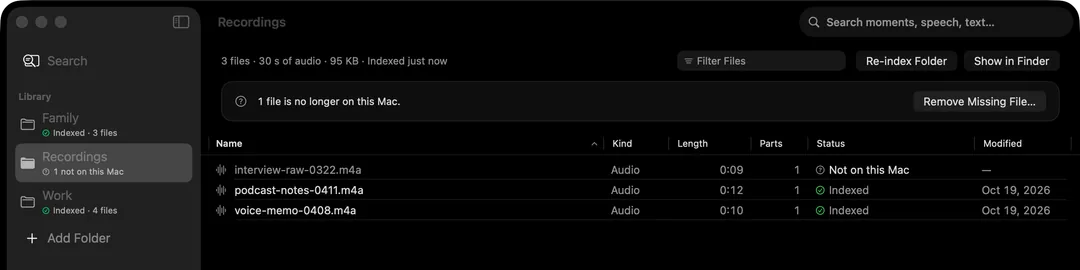
To search videos on an external drive on a Mac, add the drive's folder to HyperArc and describe what you're looking for, like “drone shot over a harbor”. HyperArc keeps its index on your Mac, so you can search the drive's videos, recordings, photos and PDFs even when it's in a drawer, then plug it in to open the file at the matching moment.
Why is footage on an external drive so hard to find?
Most video archives outgrow the Mac they were shot for. Old projects go to a drive, then a second drive, and each one fills up with folders named after shoots nobody remembers. Spotlight can find a file on a connected drive by its name or metadata, but it doesn't look at what's in a video (what Spotlight does and doesn't search). And if the drive isn't plugged in, there's nothing to search at all.
So finding one shot usually means guessing which drive it's on, plugging it in, and scrubbing through clips. HyperArc changes the first two steps: the search happens on your Mac, against an index of what's inside each file.
How do you add an external drive to HyperArc?
- Connect the drive so it shows up in Finder.
- Add the folder. Click Add Folder in the HyperArc sidebar (Command-O) and pick a folder on the drive, or the drive itself. You can also drag a folder from Finder onto the HyperArc search window.
- Let it index. HyperArc reads each file on the drive and builds its index on your Mac: 30-second segments for videos and recordings, a page at a time for PDFs, and each photo. The sidebar shows the folder's progress, and the folder table lists every file with its length and status.
- Search. Type what happens in the shot or what's said in the recording. Results show the file, its folder and the time range of the matching moment.
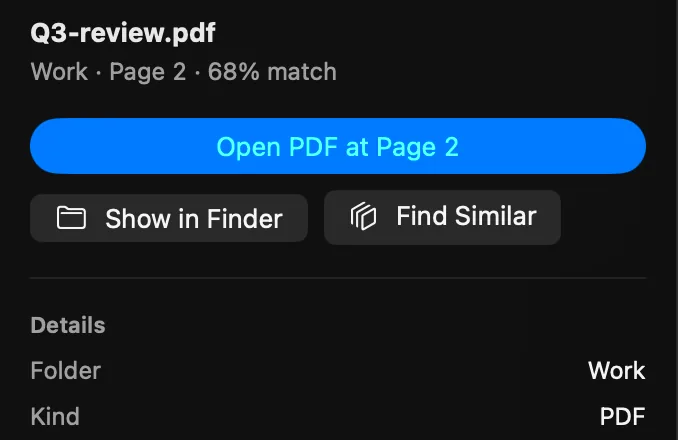
- Open it there. With the drive connected, Open at [time] opens a video or recording at the matching moment, and Show in Finder selects the file on the drive.
Keep the drive connected until the folder shows Indexed. If you copy new footage to it later, open the folder in HyperArc and choose Re-index Folder.
What happens when the drive is unplugged?
Nothing is lost. HyperArc stores the index on your Mac, so a drive in a drawer is still searchable:
| Drive connected | Drive not connected | |
|---|---|---|
| Shows up in search results | Yes | Yes |
| File name, folder and time range | Yes | Yes |
| Preview, Open and Show in Finder | Yes | Connect the drive first |
| Find Similar from a result | Yes | Yes |
| Status in the folder table | Indexed | Unavailable (“The drive isn't connected”) |
| Search data kept | Yes | Yes |
Search tells you which file on which drive holds the moment, and the time it starts. Plug in that one drive, and the preview and Open at [time] work again.
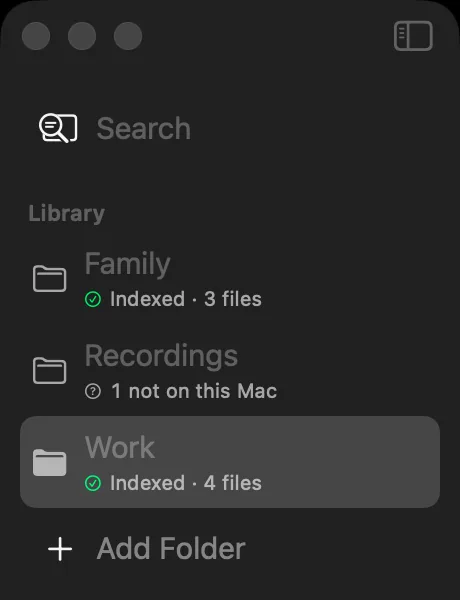
HyperArc also tells a disconnected drive apart from a deleted file. Files on a drive that isn't mounted are marked Unavailable and keep their search data. Only files that are really gone from a connected drive count as “no longer on this Mac”, and HyperArc removes those from the library only when you click Remove Missing Files and confirm.
Can you search several drives at once?
Yes. Each drive's folder sits in the same library, next to the folders on your Mac. One search covers all of them, and the results mix video moments, recordings, photos and PDF pages from every drive. To look at one drive only, select its folder in the sidebar and type, or pick it in the folder filter in the results. The type filter narrows results to video, audio, photos or PDFs.
Find Similar works across drives too. Select a result and HyperArc lists moments that look or sound like it, from every folder in the library. It's handy for finding the other takes of a shot that ended up on different drives. You can also drop a photo or clip onto the search area to search with an image.
How do you get a clip from the drive into your editor?
HyperArc finds the moment; your editor does the rest. With the drive connected:
- Select the result to see the preview and the time range.
- Copy Timestamp (Shift-Command-C) puts the start time on your clipboard for your notes or markers.
- Drag the result from the list into another app, or use Show in Finder (Shift-Command-R) to select the file on the drive and drag it into your timeline.
The guide for video editors covers this workflow in more detail, and find a moment in a video has search tips for footage.
What stays on your Mac?
Everything. HyperArc downloads its search model (about 485 MB) once during setup. After that, indexing and search run on your Mac and work offline, and your files, the index and your searches never leave it. HyperArc doesn't rename, move or tag the files on your drives. More on that in private, offline media search.
What to know before you start
- A big drive takes a while to index the first time. The work happens on your Mac, so keep the drive connected until the folder shows Indexed.
- Opening, previewing and Show in Finder need the drive connected. Searching doesn't.
- HyperArc searches what's in the files, not their names. If you also want tidy folders, see how to organize video and photo files on a Mac.
- It's a Mac app. HyperArc is $129 once, for up to 3 Macs, with a 7-day money-back guarantee, and needs macOS 15 or later.
Updated